Advance School Grades
Church Windows has a utility that will change people’s entry in their School Grade field on The Individual Record to the next higher school grade. This routine will advance all grade numbers in The People File. This does not Advance Groups / Classes. Typically, summer is the best time to run this utility.
The default setup includes all grades between 01 and 11, a "K" for Kindergarten to be moved to grade 01, and grade 12 will be changed to a "G" for Graduated. You may store other characters or numbers in this field, possibly to indicate "P" for Preschool or "N" for Nursery, or additional numerical codes for college — 13, 14, 15, 16. However, these codes will need to be added to the correct place in the list to be affected by the "Advance School Grade" routine.
Note:
You may not have The People File open while advancing. Additionally,
if your computers are networked, then everyone else must be closed out of Membership.
Run the Advance School Grade
routine:
- From The Initial Portal of Church Windows choose Membership
- Then in the Button Bar at the top of the screen, select Special Functions
- Choose Advance Grades
- The Advance School Grades screen will appear:
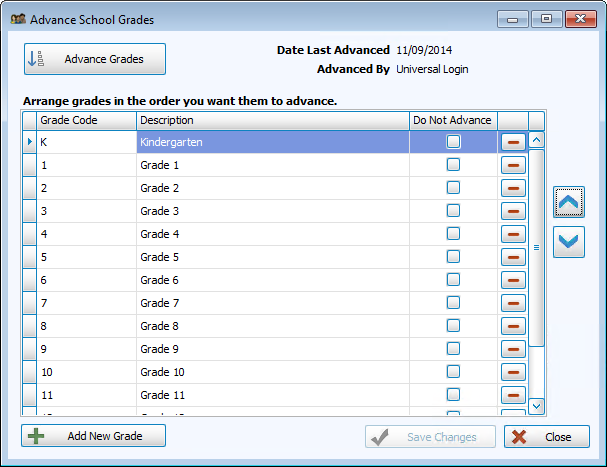
- When you click Advance All, all grade levels listed will be advanced in the order that they are listed in this screen.
- The next time you go to the Advance School Grade screen, the screen will display the Date Last Advanced at the top left.
- If passwords exist, it will also identify who last advanced the school year next to Advanced By.
- This information should prevent inadvertently advancing the school grade more than once in a given school year.
Note:
If you inadvertently click Advance All
to tell the system to advance the school grade again, a message will appear
telling you that less than nine months have gone by since you last advanced
the school grades. You have the option of canceling the process.
Add grade levels to the Advance procedure
- Click the + Add button:
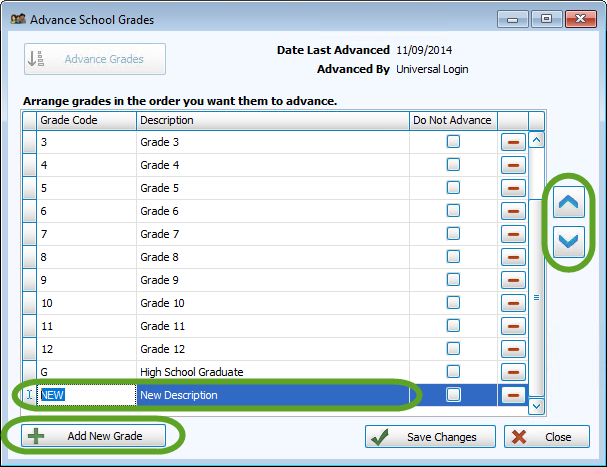
- In the Grade Code column, change NEW to PK, for example.
- In the Description column, type Pre-Kindergarten.
- Use the
 up and down arrow buttons to rearrange the order of the grades as needed. Because pre-kindergarten comes before kindergarten, it needs to be moved up, however if you were adding 13,14, etc. for college codes, you would need to use the down button to move them into the correct order for advancement.
 - To get rid of a grade, click the
 Delete button at the far right of the grade you wish to remove.
 - Click Save Changes to finish, or select Cancel to discard changes and exit this screen.
